If you have ever sat down to set up a new billing software and spent the next three hours typing product names, SKUs, and prices one at a time — you know exactly how painful it is. By product number 47, you are questioning every decision you have ever made.
We built the Bulk Import Products feature in Wiseventory to solve exactly this. Whether you are migrating from another system, setting up a new shop, or adding a fresh batch of seasonal stock — you can now get your entire catalog into the system in minutes, not hours.
Why Manual Product Entry Slows You Down
Adding products one by one sounds fine when you have 10 items. But most shop owners — whether they run a retail store, a wholesale distribution business, or a multi-category outlet — carry hundreds of SKUs. Some carry thousands.
It takes forever
At 2 minutes per product, a catalog of 200 items takes nearly 7 hours of solid typing. That is a full working day gone before you have billed a single customer.
Typos and pricing errors creep in
Manual entry means manual mistakes. A wrong price or GST rate on even one fast-moving product can silently cost you money on every invoice until someone catches it.
Variants become a nightmare
A single shirt comes in 4 sizes and 3 colours — that is 12 entries. A shoe range with 6 sizes across 5 styles is 30. Doing that by hand is genuinely miserable.
How Bulk Import Works in Wiseventory
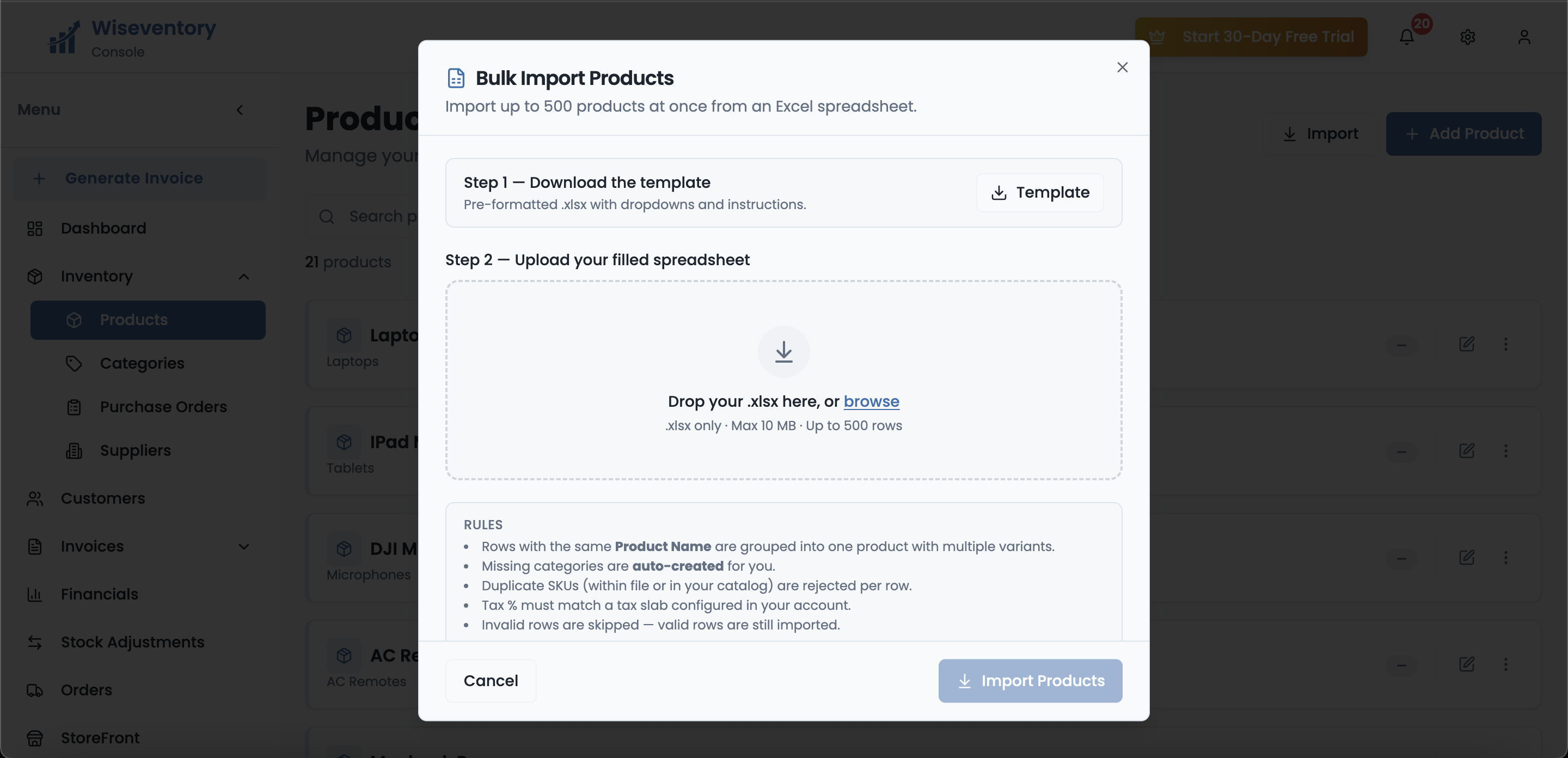
The whole process has exactly two steps. There is no complicated configuration, no data mapping screen, no developer required. Here is what it looks like in practice:
Download the pre-formatted template
From the Products page, click Import → then download the Template file.
The template is a ready-made .xlsx spreadsheet with all the right column headers already in place — product name, SKU, category, selling price, cost price, tax percentage, opening stock, and more. It also has dropdowns for fields like GST slab so you cannot enter an invalid value by accident. Just open it in Excel or Google Sheets and start filling it in.
Upload your filled spreadsheet
Drag the file into the upload box, or click browse to pick it from your computer.
The file goes through validation instantly. It accepts .xlsx files up to 10 MB, which comfortably fits 500 product rows. Within seconds of uploading, Wiseventory processes every row and tells you exactly how many products were imported successfully.
That is genuinely it. Two clicks and a filled-in spreadsheet. No waiting, no back-and-forth, no support ticket.
What Happens After You Import
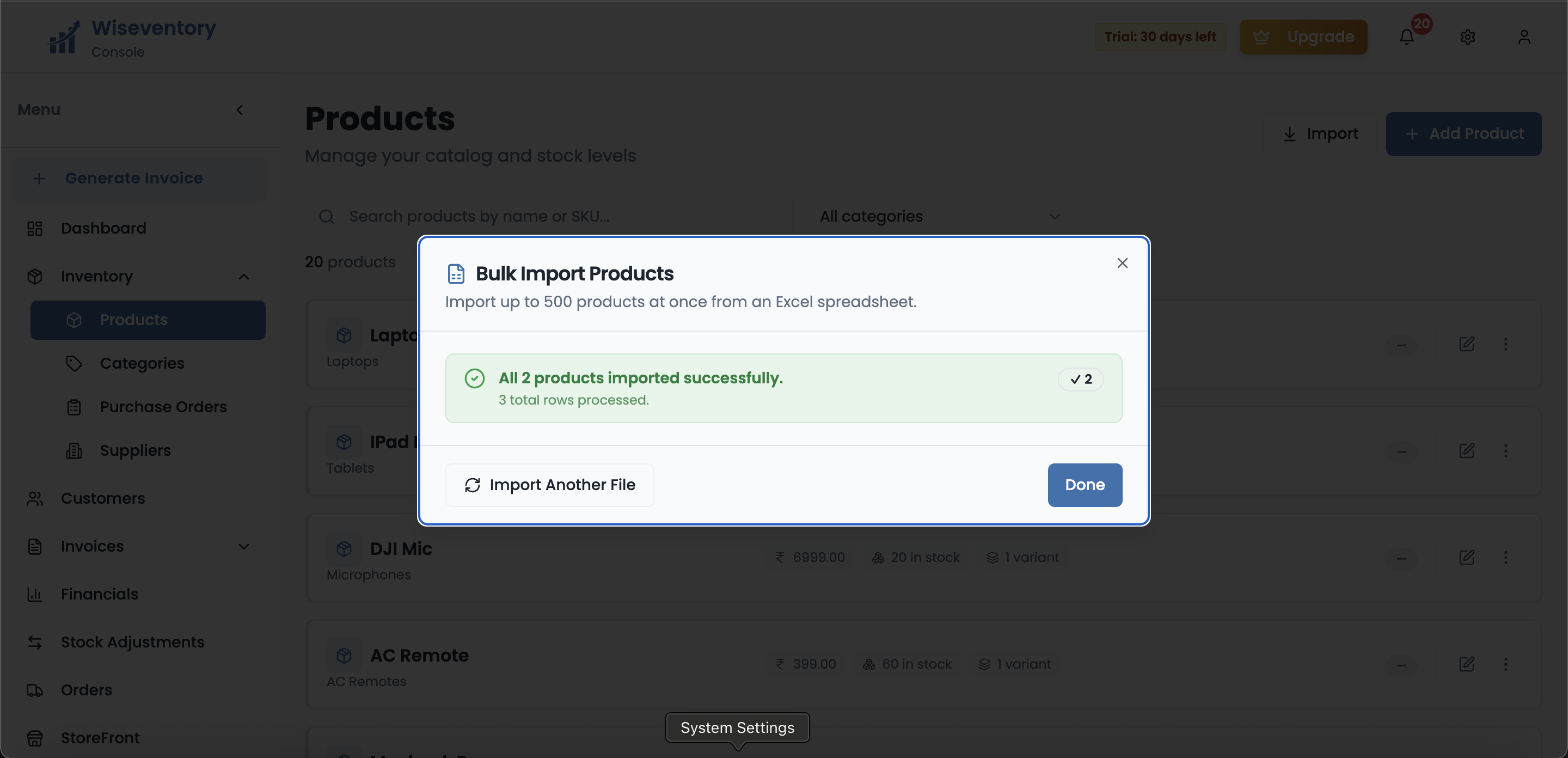
Once the file is processed, you get a clear summary right on screen. It tells you how many products were imported, how many total rows were processed, and whether anything was skipped. The result is instant — there is no loading spinner to watch for five minutes.
If all your rows are clean, you will see a satisfying green confirmation: "All X products imported successfully." From there, you can either hit Done and go straight to your now-populated inventory, or click Import Another File to keep going with the next batch.
Your products show up in the inventory list immediately — with their categories, prices, stock levels, and variants, exactly as you filled them in.
The Smart Rules That Make It Work Properly
Bulk imports can go wrong in a hundred ways if the system is not careful. Here is what Wiseventory handles automatically so you do not have to:
Product variants are grouped automatically
If two or more rows share the same Product Name, Wiseventory treats them as variants of the same product — not separate items. So your "Men's Running Shoe" in sizes 8, 9, and 10 becomes one product with three size variants, not three duplicates.
Missing categories are created for you
You do not need to pre-create every category before importing. If a product in your sheet belongs to a category that does not exist in your account yet, Wiseventory creates it automatically during the import. Your catalog organises itself.
Duplicate SKUs are rejected per row — not globally
If a SKU already exists in your catalog, or appears twice in the same file, that specific row is skipped. Every other valid row is still imported. A single duplicate does not ruin the whole batch.
Invalid rows are skipped — valid rows still go through
The same logic applies to any invalid row: only that row is skipped. If 498 out of 500 rows are correct, you get 498 products imported. The system does not throw the whole file away because of two bad entries.
Tax rates must match your configured slabs
For GST compliance, the tax percentage on each product must match a slab already set up in your account. Standard slabs (0%, 5%, 12%, 18%, 28%) are pre-configured, so in most cases this just works. For any custom rates, add them to your tax settings first.
Who Should Use Bulk Import
Honestly, anyone setting up Wiseventory with an existing product catalog should start here. But there are a few scenarios where it saves an especially painful amount of time:
- New setup with an existing catalog — You already have your products in a spreadsheet from your old software, an accountant's file, or even just a price list. Export it, reformat into the template, and import. Done.
- Seasonal stock additions — A garment or electronics shop typically adds 50–200 new SKUs at the start of each season. Instead of adding them during business hours between customers, fill the spreadsheet the night before and import in the morning.
- Switching from another billing app — If you are coming from Vyapar, Tally, or any other software that can export to Excel, your data is already halfway there.
- Wholesale distributors with large catalogs — If you carry 500+ SKUs, this is essentially the only practical way to populate your inventory.
Tips for a Clean Import (From Our Support Team)
After watching thousands of imports, here is what separates a clean run from one that needs a second attempt:
Always start from the downloaded template — don't build the spreadsheet from scratch. The column order matters.
Do not leave the Product Name column blank on any row. That is the most common cause of skipped rows.
Use the same Product Name spelling exactly for all variant rows — 'Nike Shoe' and 'Nike shoe' will create two separate products.
If you are unsure about the GST rate for a product, check it against your Wiseventory tax settings before filling the sheet.
Keep the file under 500 rows per upload. If your catalog is larger, split it into batches of 400–500.
Bulk Import Is Just the Start
Once your products are in, Wiseventory takes over. Every item you imported is now live in your inventory — trackable in real time, ready to be added to invoices, and connected to your purchase orders and analytics.
Here is what happens next, without you having to do anything extra:
Instant invoicing
Every imported product is searchable by name or SKU on the billing screen. Creating a GST invoice now takes under 10 seconds.
Live stock tracking
Opening stock you entered during import is deducted automatically as you sell. Low stock alerts fire when anything drops below your threshold.
GSTR-ready reports
GST rates on your products feed directly into your GSTR-1 and GSTR-3B reports. No manual calculations for filing.
Purchase orders
When stock runs low, raise a purchase order from the same screen. Your supplier catalog is already linked to your product list.
The idea is simple: get your catalog in fast, then let the software do the work it is designed to do — so you can spend your time on the shop floor, not in front of a screen.